
Set your coaching rules once
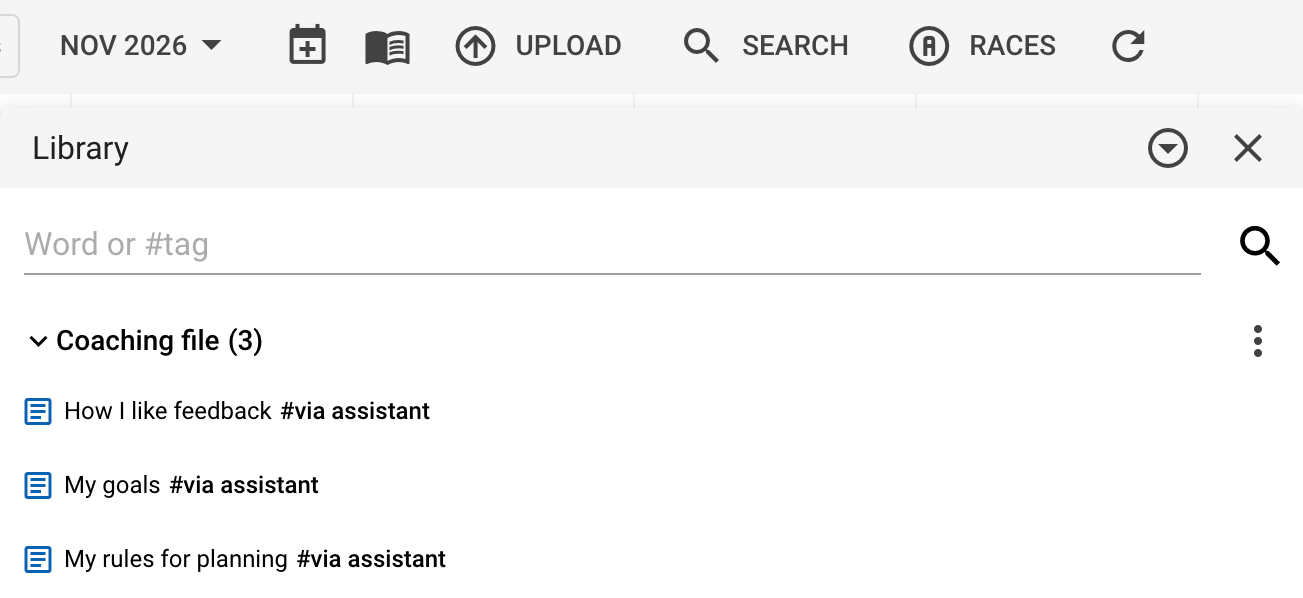
Your coaching rules tell your assistant how you train and how you want to be helped. They are kept in your Intervals.icu Library, in a folder named Coaching file, so your assistant may call them your coaching file. To see them in the app, open the calendar, select the book icon in the top bar, and open the folder named Coaching file.
- You tell your assistant your coaching rules once
- They are kept as notes in your Intervals.icu library
- The connector tells every assistant you connect to read them
What they are
-
Tell it once.
Your coaching rules are where you tell your assistant, once, how you train and how you like to be helped. The connector tells every assistant you connect to read them before it plans, reviews or advises, so you never explain your rules again when you switch.
-
What it holds.
They hold your coaching rules, not your numbers. Your zones, thresholds, targets and workout library stay where they are in Intervals.icu, and your assistant reads them from there.
-
You stay in charge.
Your assistant follows them as your preferences. What you say in the conversation still wins, and the connector's own safeguards stay in place whatever your rules say: it still shows you deletes, settings changes and whole plans before they happen.
Two ways to set it up
Ask your assistant
Tell your assistant what to keep, in your own words:
- “Start a coaching file for me: long ride on Sundays, never two hard days in a row.”
- “Add to my coaching file that I want feedback short.”
- “From now on my long ride is on Sunday, not Saturday. Update my coaching file.”
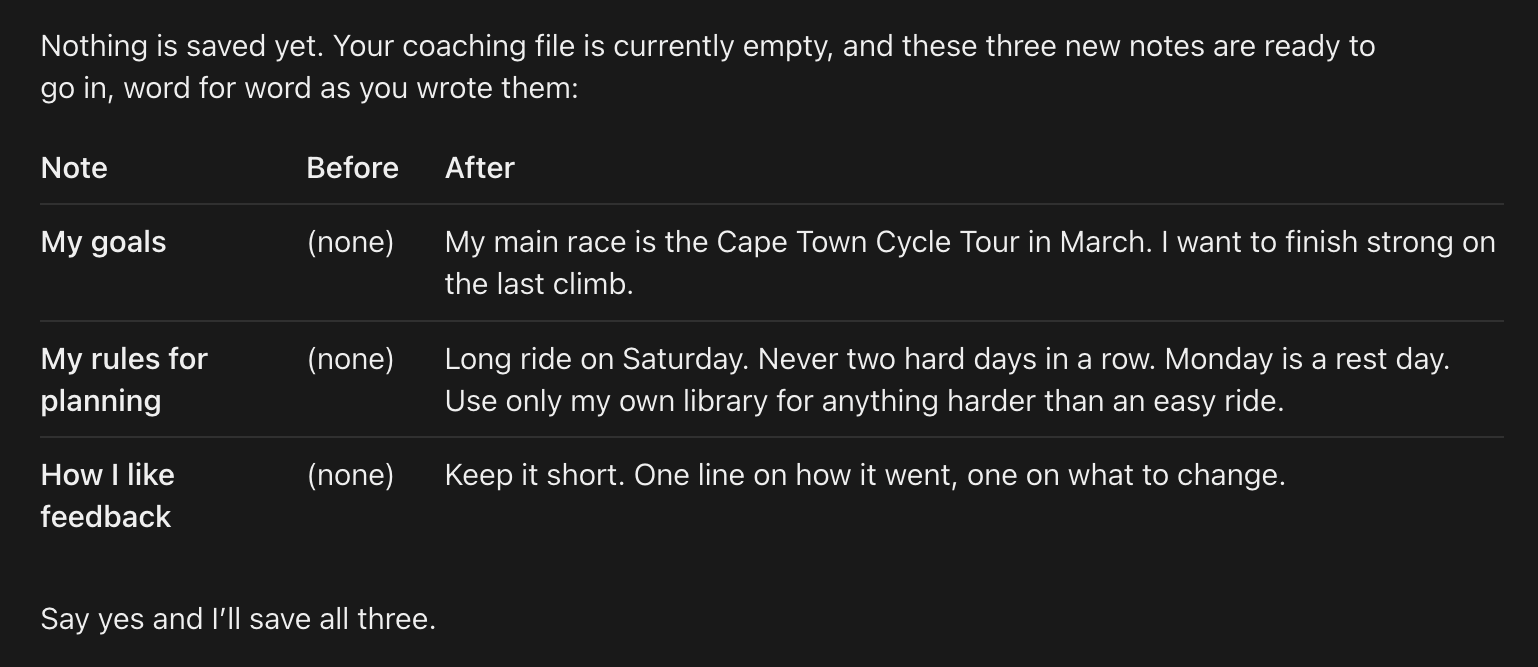
Your assistant shows you exactly what it will save, the text before and after, and saves only after you say yes. If you state a standing rule in a conversation, it may offer once to keep it for you.
If your assistant says it cannot save to your library, reconnect the connector and keep Update ticked under Library on Intervals.icu's approval screen.
Or make it in the app
-
On the calendar, select the book icon in the top bar. It opens your Library.
-
Choose New, then Folder, and name it Coaching file.
-
On the folder's menu choose Add Workout, set Sport to Note, give it a name, write your instructions in Description, and choose Ok.
-
Then ask your assistant: what's in my coaching file?
Add one note for each topic. Your assistant sees each note's name at the start of a conversation and reads the notes when it needs them. To put the notes in order, start their names with a number, such as "1 My goals".
On a phone, keep the Library window full screen: the New button shows there.
What to write
Use any headings you like. These are a starting point, not a form:
-
My goals
Your races and targets for the season, and why they matter to you
-
My rules for planning
What your week must look like, and what it must never look like
-
How I like feedback
Short or detailed, numbers or plain words, what to tell you first
-
What never to do
Anything your assistant should leave alone
-
My coach's method
The way your coach works, in your own or your coach's words
Three lines to start from:
- Use only my own library for anything harder than an easy ride.
- Never plan hard days back to back, and keep Saturday for the long ride.
- Keep feedback short: one line on how it went, one on what to change.
Good to know
-
You see every change first.
Your assistant can add to the file and change it, always after showing you the change and hearing your yes. It deletes a note only when you ask, and shows you what will go first.
-
Nobody else can add to it.
Only your own Coaching file folder is read. A folder someone else shares with you is not, so nobody can add instructions to your assistant without you.
-
Room for 10 notes.
Each note is read up to 6,000 characters, and up to 10 notes. Your assistant tells you when a note is longer, and saves notes only within those limits.
- Intervals MCP Connector: what it does and how to connect
- Release log: every release, and whether you need to reconnect